Custom Control Map App
The Custom Control Map app turns a Matrix OS device into a configurable control surface. Each grid key can send MIDI, keyboard, or gamepad output, switch layers, trigger another key's mapping, and show LED feedback.
Maps are created in the Matrix OS Control Map Editor, then uploaded to the device while the Custom Control Map app is open.
Quick Start
- Open the Custom Control Map app on your Matrix OS device.
- Open edit.203.io in a browser that supports WebHID, such as Chrome or Edge.
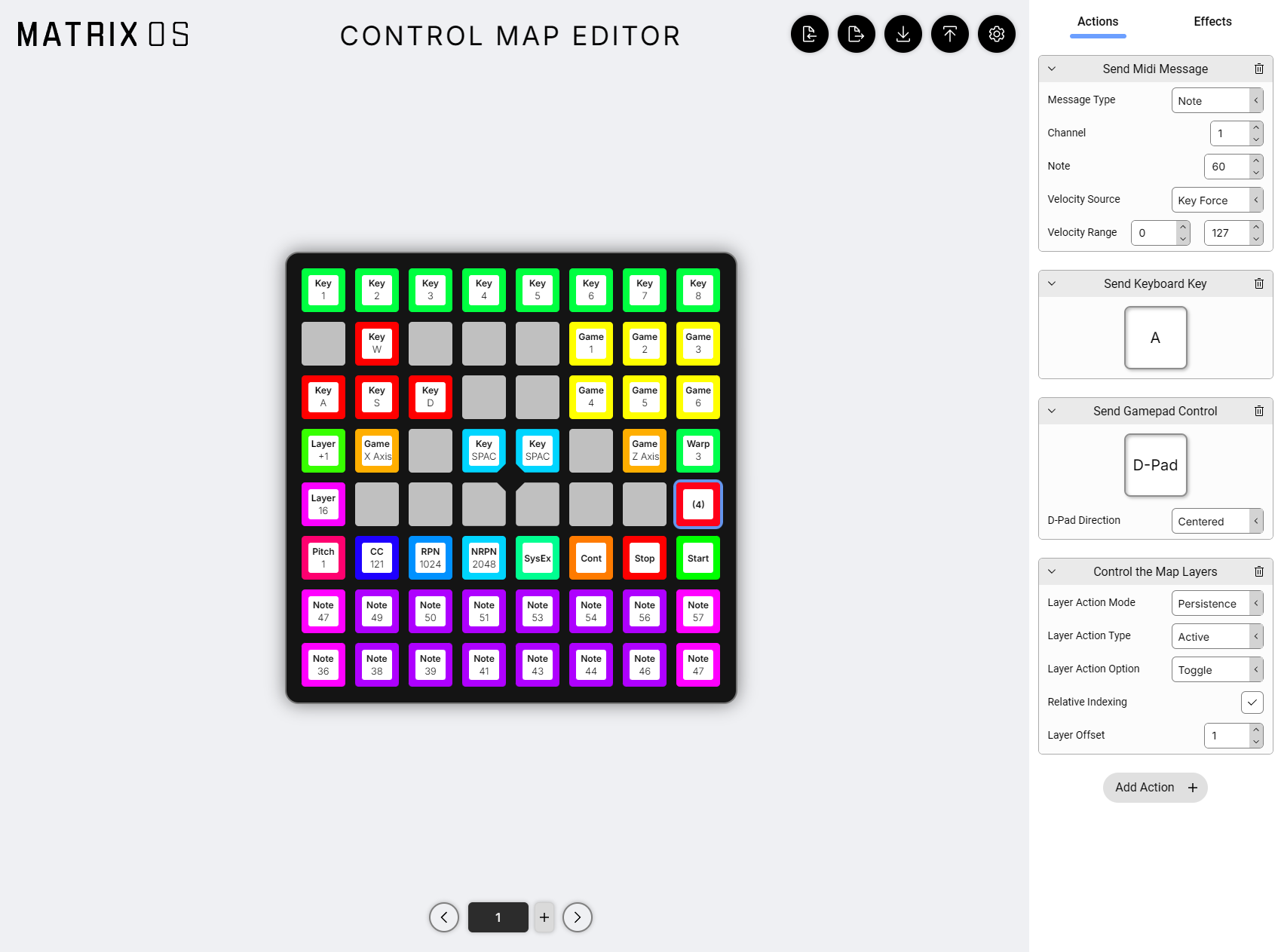
- Select a key on the editor's 8x8 grid.
- In the right panel, choose Actions and add the output you want that key to send.
- Choose Effects and add a color if you want the key to light up.
- Use Upload to Device to send the map to the device.
- Test the key on the device. Use Export to File to keep a backup copy of your map.
The editor can only talk to the device while the device is already inside the Custom Control Map app. If the editor says the device is not in the app, launch Custom Control Map on the device and try the upload again.
Editor Layout
The editor is split into three main areas:
- Left navigation: import or export
.uadafiles, import the current map from the device, upload the editor map to the device, and open editor settings. - Grid workspace: select the key you want to edit. The current layer is shown near the top.
- Inspector: add, remove, and configure actions or effects for the selected key.
The editor stores backup files as .uada. A .uada file is the editable JSON version of the map. When uploading, the editor converts it to the compact UAD format used by Matrix OS.
Key Model
Each key has two stacks:
- Actions do something when the key is pressed, released, or receives pressure/aftertouch.
- Effects update the key's LED feedback.
You can put multiple actions on one key. They run in order from top to bottom in the selected key's action stack. This is useful when one press should send MIDI and also switch a layer, or when a key should send several messages together.
Effects are separate from actions because visual feedback and output behavior often need to be edited independently.
Actions
The current editor exposes these action types:
| Action | Use it for |
|---|---|
| MIDI | Notes, Control Change, Program Change, Pitch Bend, RPN, NRPN, transport messages, and SysEx. |
| Keyboard | USB keyboard key press and release. |
| Gamepad | Gamepad D-pad and analog axes. |
| Layer | Enable, disable, or toggle active layers and passthrough layers. |
| Wrap | Run the actions and effects from another key position or layer. |
MIDI Value Sources
MIDI actions that output a value can use several value sources:
- Momentary sends the end value on press and the begin value on release.
- Persistent sends the end value on press only.
- Toggle alternates between begin and end on each press.
- Key Force maps pressure to the configured begin/end range, and sends the begin value again on release.
For SysEx, enter bytes separated by spaces. Hex values such as 0xF0 0x7D 0x01 0xF7 are supported. SysEx must start with 0xF0 and end with 0xF7.
Custom Control Map currently sends SysEx through the USB MIDI port.
Effects
The current editor exposes these effect types:
| Effect | Use it for |
|---|---|
| Button Driven Color Effect | Set an idle color and a pressed color for a key. |
| Action Driven Color Effect | Choose colors based on action state, most commonly a MIDI toggle state. |
Button Driven Color is the simplest way to make a key visible. Action Driven Color is useful for toggle controls: for example, a MIDI toggle can show one color when off and another color when on.
Layers
Layers let one physical key do different things in different modes. Layer 1 is the default layer. Higher enabled layers take priority over lower layers.
When a key is pressed, Matrix OS checks the highest enabled layer first:
- If that layer has an action for the key, that action runs and lower layers are ignored.
- If that layer has no action and passthrough is enabled for that layer, Matrix OS continues looking at lower layers.
- If that layer has no action and passthrough is disabled, the search stops.
This means an upper layer can either override a lower layer or leave holes that fall through to the lower layer.
Layer Actions
Layer actions can control two different layer states:
- Active decides whether a layer participates in the top-layer search.
- Pass Through decides whether empty keys on that layer fall through to lower layers.
Layer actions also have two behavior modes:
- Persistence changes the layer state when the key is pressed and leaves it there.
- Momentary changes the layer state while the key is held, then flips it back on release.
Use relative indexing when you want a layer action to target a layer relative to the layer that triggered it, such as +1 for "next layer". Use absolute layer numbers when the key should always target a specific layer.
Wrap Actions
Wrap runs another key's action/effect group instead of duplicating it. This is useful when several keys should share behavior, or when a layer should reuse a base-layer action with a different visual or routing setup.
Wrap can target:
- another layer, either absolute or relative;
- another key position, either absolute or relative.
To avoid runaway loops, nested action execution is limited. Keep Wrap chains short and avoid circular references.
Saving And Loading
Matrix OS 4.0 can save larger Custom Control Map files when device storage is available. Smaller maps are stored in NVS. Larger maps are saved to the device filesystem, so a microSD card is required for maps that exceed the NVS storage budget.
Current storage limits:
| Storage | Limit | Notes |
|---|---|---|
| NVS | about 8 KB | Used automatically for smaller maps. |
| Device filesystem | about 32 KB | Used automatically for larger maps when storage is available. |
When both storage locations contain a map, Matrix OS loads the filesystem copy first and falls back to the NVS copy if no filesystem map is available. On devices with filesystem storage, the saved map path is /map.uad.
Use Export to File whenever you make a map you care about. It gives you a .uada file that can be imported later, shared, or edited without needing the device.
Import And Upload
Import From File
Use Import from File to load a .uada backup into the editor. This only changes the editor workspace; it does not change the device until you upload.
Export To File
Use Export to File to download the current editor map as .uada.
Import From Device
Use Import from Device when you want to edit the map currently loaded on the device. The device must be connected over USB and running the Custom Control Map app.
Upload To Device
Use Upload to Device to send the editor map to the device. The editor will:
- ask the browser to connect to the Matrix OS HID device;
- check that the device is in the Custom Control Map app;
- generate the UAD map;
- transfer it to the device;
- ask the device to save it;
- ask the device to load the saved map.
If the generated map is too large, simplify the map or use a device setup with filesystem storage available.
Browser And USB Requirements
The web editor uses WebHID. Use a Chromium-based desktop browser such as Chrome or Edge. Firefox and Safari do not currently expose the WebHID API needed by the editor.
If the device selection dialog does not show your device:
- make sure the device is connected over USB;
- launch the Custom Control Map app on the device before connecting from the editor;
- close other tabs or apps that may already have the HID device open;
- reconnect the USB cable and try again.
Troubleshooting
| Symptom | What to check |
|---|---|
| Browser says WebHID is not supported | Use Chrome or Edge on desktop. |
| Editor says the device is not in Custom Control Map | Open the Custom Control Map app on the device, then try again. |
| Upload fails while saving | The map may be too large for available storage, or the device filesystem may not be available. Export a backup, reduce the map size, or add/verify storage. |
| Imported map looks empty | Make sure you imported a .uada file exported by the editor, not the compact runtime .uad file from device storage. |
| A higher layer key does nothing and lower layers do not trigger | Enable passthrough on the higher layer, or add an action to that key on the higher layer. |
| Toggle color does not match the expected state | Use Action Driven Color on the same key and configure the color slot that corresponds to the action state. |
Current Limitations
- The runtime currently handles the primary grid keys. Off-grid controls are not mapped by this app.
- The Function Key is reserved for the Action Menu.
- The editor is currently built around an 8x8 device layout.
- A map can contain up to 16 layers.
- Large maps require device filesystem storage.
Action Menu
Hold the Function Key while in Custom Control Map mode to open the Action Menu. If Menu Lock is enabled, press behavior changes so the menu is harder to open accidentally.
Comments